
Logo Blocks
Logo Blocks are now part of Logo and also available as a separate application. Logo Blocks is similar to Google’s Blockly app, where you can drag blocks of code together to create a small program.
To activate the Blocks editor in Logo (which is just a panel like any other panel), choose ‘Select a view’ from the Icon bar and select one of the two Blocks layouts. The BSV option (also a command) arranges the Listener, the Graphics panel, the Logo editor, and the Blocks panel to make it easy to work with Logo Blocks.
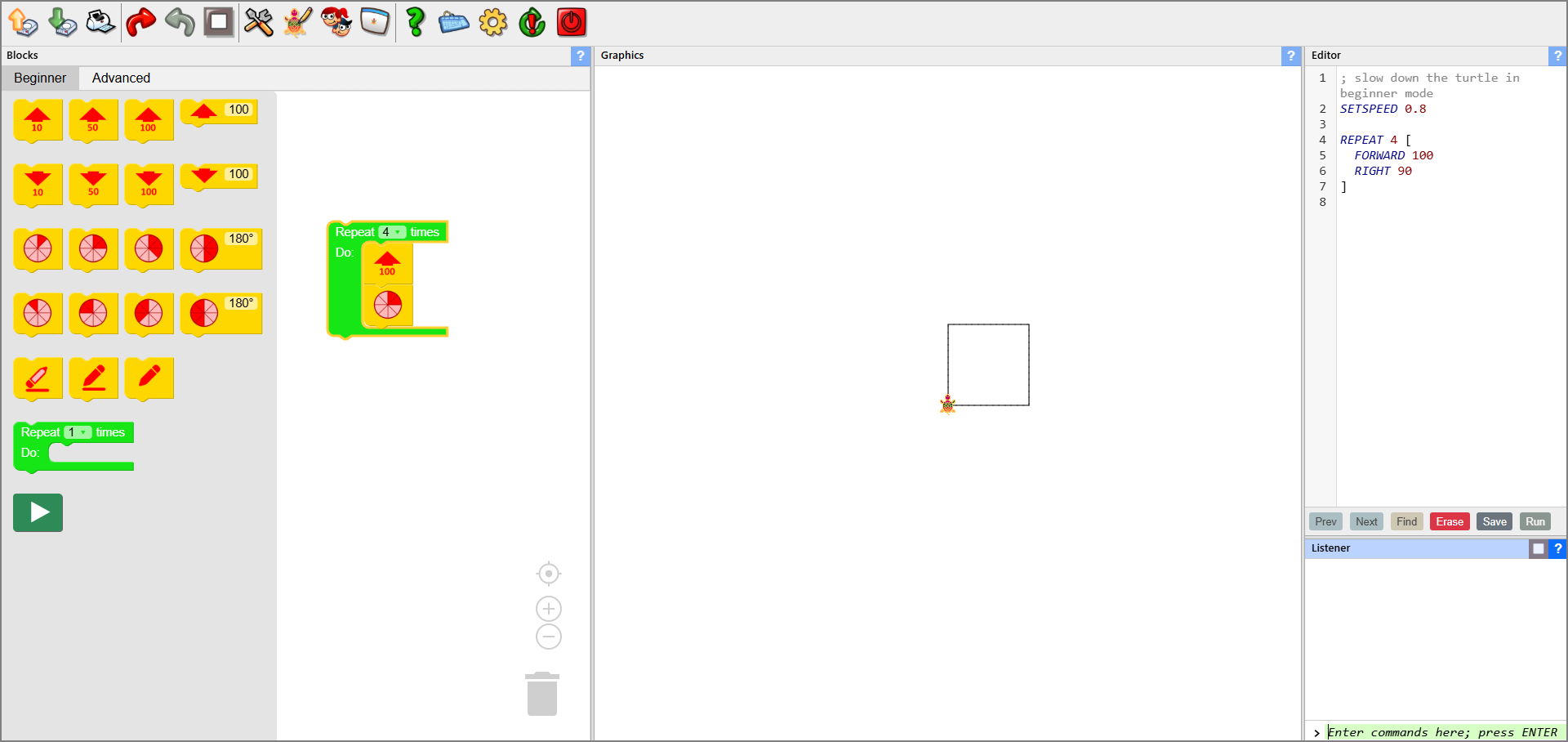
Logo Blocks has two modes, Beginner and Advanced. Initially, the Beginner mode is displayed, with small blocks to move the turtle around and work with basic Logo commands.
The Advanced mode has many more blocks, including logic blocks that let you create programs that make their own decisions. Lists are important to Logo so there is, for example, a special block that lets you create lists.
You can click on either the modes to view the available blocks.
The Logo editor shows the Logo code that you create by putting the blocks together. Every change you make to the blocks, even if you change a name or change a value, goes into the Logo editor. If you want to run your code, simply click the editor’s Run button, and off you go!
(Note that if you change the code in the editor, the block code doesn’t reflect those changes.)
Just try putting a program together, and have fun!