Logo Blocks Debugging Tips
Here are some tips to help you debug your Logo Blocks programs.
If your code doesn’t work the way you think it should, try these suggestions.
I See Extra Code in the Editor
If you see some extra commands in the Editor that you didn’t expect, there may be some blocks hidden where you can’t see them. Close the category by clicking on its name, or use the sliders to move back and forth or up and down to track down blocks you didn’t know were there. Once you find the extra block, you can drag it to the Trash icon to remove it from your program.
For example, in the Editor, you see the number 12345, but you don’t see them in the workspace area.
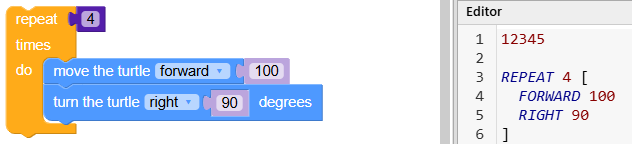
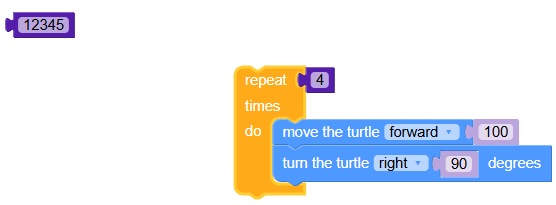
Ah, there it is! It’s behind the list of blocks at the left, grayed out.
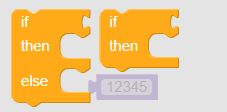
Now that you found it, you can drag it to the trash.
My Procedure Doesn’t Run
If you create a procedure and click the Run button, but nothing happens, this may be the reason!
You need to call the procedure for it to run. Go to the Procedures section and find the call block.

Without the call SQUARE block, your SQUARE procedure will never run!
If you have written a procedure that takes inputs, be sure to include starting values for the inputs when you call it.
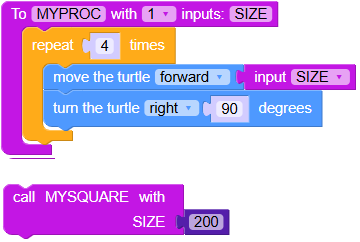
Also be sure that the procedure call comes after all the other code in your program. You can’t run a procedure that hasn’t been defined.
My Turtles Aren’t Following My Code
If you are using one of these multiple turtle commands —


but they aren’t running the code in the blocks you are using, it is probably for this reason.
You need to create the turtles before giving them commands.
This code won’t set the turtle’s pencolor to red:

This will do what you want:

So, set the pencolor after using the make a line or make a circle block, not before. Now it will work! This applies to all commands you want all the turtles to follow.
My Variable Names Got Mixed Up
If you are using variables in procedures and disconnect blocks that use them, the variable names may be wrong when you put them back together. You need to double-check to see if the names are in the correct places.
Here is a procedure with two variables correctedly labeled.
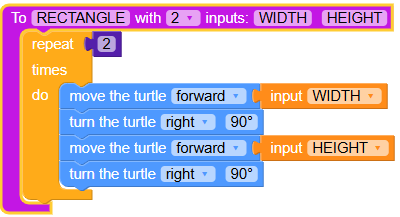
If you disconnect the sections with the variables, the forward blocks will be missing their variable names.
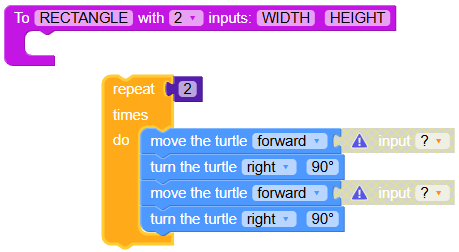
When you reconnect the blocks, you need to make sure the variable names are correct and in the right spots. In the image below, there are two variables named WIDTH. Just change the second variable name to HEIGHT and you are all set.