
Tips for Power Coders
These tips will help you code more quickly and efficiently.
Tip 1: Easy Ways to Delete a Block
If you select a block and press the Delete key, the block will go right into the Trash can. You don’t have to drag it there. You may find that shortcut helpful, but you can’t undo it!
You can also right-click a block and delete it. More about the right-click menu below.
Tip 2: Keyboard Shortcuts
On a Mac computer, use the Cmd key with the letter listed below.
-
Ctrl+D runs your code. Doing this is the same as clicking the Run button.
-
F3 stops the program. Doing this is the same as clicking the Stop button.
-
Ctrl+O opens a dialog box so you can choose to a file to load. Doing this is the same as clicking the Load button.
-
Ctrl+S opens a dialog where you can choose to save the Editor (Logo Code), the picture in the Graphics area, or the Blocks commands. This keystroke offers more choices than the Save button.
-
Ctrl+P allows you to print the entire screen. You may wish to use the sliders to resize the panes to print what you want. You may also wish you use your computer’s Printscreen command to print the screen and grab the parts you want. In the full version of Logo, you can choose individual panes to print.
Tip 3: Right-click Menu Choices
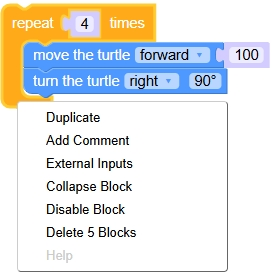 If you right-click a block, you will see some choices that will help you code more easily.
Right-click the border of a block of code, the golden border in this case, for a useful context menu that applies to the code you selected. You can do the same with an single block as well. Because each block can vary, the options may be different from those shown here.
From this context menu, you can choose to:
- Duplicate or make a copy of the block, a real time-saver when you want a similar block of code, which you can then edit to do a slightly different job
- Add Comment, which can be useful to help other people understand your code (as well as a good reminder for yourself!)
- Inline Inputs put the inputs on one line; the opposite is External Inputs (see below)
- Collapse the block so it takes just one line (you can expand it later); this can be very helpful with your code gets long
- Disable the block, which keeps it around, but removes the code from the Editor and won’t run it; you can enable it with another right-click on the block
- Delete all the blocks that are in the selection (you can’t undo this one!)
If you choose Add Comment, a question mark will appear in the upper left of the block. Click the question mark and type a note. It’s a great way to document your code.
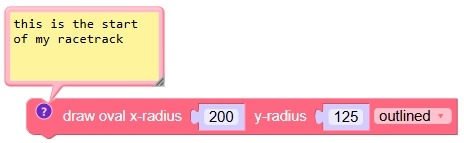
Let’s look at the difference between Inline Inputs and External Inputs.
Inline Inputs look like this:

External Inputs look like this:
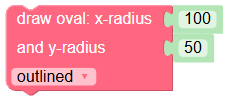
You can switch between them by right-clicking the block and choosing the other style of inputs.