
Resources for the Space Foundation
“Getting to Know Your Blue-Bots”
This information was presented for the National Space Day team in March 2026.
Below are links to web pages and files discussed or mentioned during the session.
Meet Blue-Bot

Blue-Bot needs to be charged before its first use. Details below.
On top of Blue-Bot are these buttons you can press to control it.
Note that the left and right buttons turn it, but do not move it.
Some younger students may be confused by this at first.

Blue-Bot has three switches underneath, for power, sound, and sensor.
Turn them all on, unless you want them to be silent. The sensor switch is discussed below.
)
Blue-Bot moves forward and back, one step at a time.
One step is equal to 6 inches, 15 centimeters, or 1 length of Blue-Bot.
Blue-Bots can store up to 200 commands.
Read more information about Blue-Bots here.
Charging Information
Important charging information to get the most out of your Blue-Bots and extend their battery life:
- Charge the Blue-Bots before their first use.
- Do not charge Blue-Bots longer than overnight.
- Make sure they are unplugged before vacations.
- Charge the Blue-Bots every month or two even when they are just being stored.
All switches need to be set to OFF in order for Blue-Bot to charge.
- Flashing Red – Low battery: needs charging
- Solid Red – Charging
- Solid Green – Fully charged
It may take up to 2 hours to fully charge Blue-Bot if the battery has been fully discharged.
Once fully charged, Blue-Bot will have about 6 hours of normal usage, and about 1.5 hours of continuous use.
Low Power Sleep Mode:
- If your Blue-Bot is not used for 2 minutes and the sensor switch is in the ‘OFF’ position, Blue-Bot will play a sound and go into sleep mode.
- If your Blue-Bot is not used for 4 minutes and the sensor switch is in the ‘ON’ position, Blue-Bot will play a sound and go into sleep mode.
- In sleep mode, very little power is consumed and the batteries will last a long time.
- Pressing any button in sleep mode, wakes Blue-Bot up, plays a sound and flashes the eyes.
For more information about batteries and other FAQs, visit this page.
Important Tips
-
Don’t push Blue-Bot when it is moving, and don’t push Blue-Bot when it is not moving.
-
To move Blue-Bot, pick it up and place it in the new position.
-
Pressing the Right or Left buttons doesn’t make it move, just turn in place.
-
Press the X (Clear) to erase the commands given to Blue-Bot.
-
To stop Blue-Bot, press the GO button.
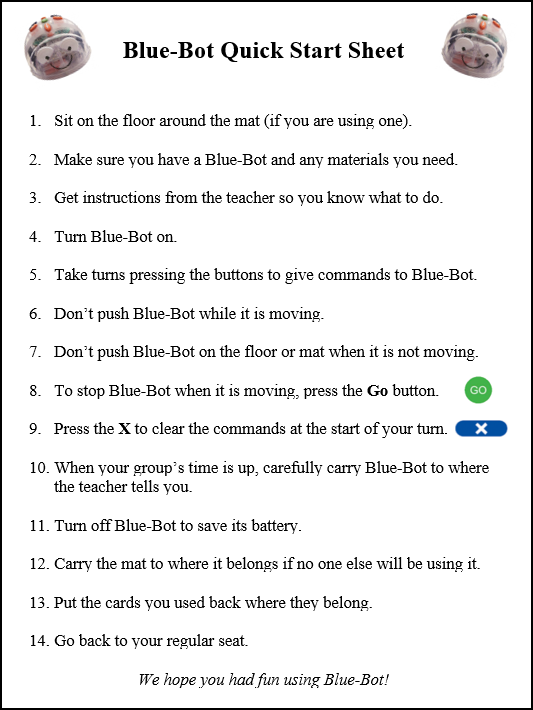
Blue-Bot Quick Start Guide
This Quick Start Guide can serve as a guide to using Blue-Bots. (Click to view it.)
Create your own version that works best for your situation.
Online Blue-Bot Emulator

Links to planet and moon emulator mats:
Explore the planets. (easier)
Explore the planets. (harder)
Visit the craters on the moon.
Download images of the planets.
TacTile Code Reader for Blue-Bot


If you connect Blue-Bot to the TacTile Code Reader via Bluetooth, you can control it remotely. Here’s how:
- Turn on Blue-Bot and the TacTile Code Reader.
- Press the Pairing button for 1 second to connect them.
- Blue-Bot will turn blue and the blinking blue light on the TacTile Code Reader will turn solid.
- Place tiles representing robot commands in order in the tray.
- Press the Send button and watch Blue-Bot move step-by-step through the program while the TacTile Code Reader lights up each command as Blue-Bot performs it.
Programs are easy to edit. Just rearrange the order of the tiles and press Send again.
Note that you can’t operate Blue-Bot using its buttons when is connected to the TacTile Code Reader.
The TacTile Code Reader comes with a set of 25 tiles for standard commands.
The Extension pack adds more functionality, including creating loops.

How to draw a square: 
Read more about the TacTile Code Reader.
Blue-Bot and Logo
 Logo is a programming language developed at MIT especially for children. Its simple design makes it a powerful way for students to explore math concepts.
Logo can pair with Blue-Bot so that students can write programs that control Blue-Bot remotely.
Students can give simple commands or write procedures that Blue-Bot can follow as it moves on the floor.
Getting Started with Blue-Bot and Logo (pdf)
Blue-Bots Can Talk! How to Customize Their Sounds
You can record a sound when a command button is pressed. Here’s how:
- Press and hold a button for 2 seconds and wait for a beep.
- Record your message. A double beep ends the recording.
To erase all sounds, press and hold the Clear button for 2 seconds until you hear a double beep.
Students may accidentally hold down a button and create a recording they didn’t intend to.
Blue-Bots can sense each other when they get within 10 inches.
You will hear a pre-recorded sound, but you can also record your own sound. Here’s how:
- Turn on the Sensor switch underneath the Blue-Bot.
- Hold down the
Gobutton for 2 seconds and wait for a beep. - Record your message. A double beep ends the recording.
For more information, please refer to this article.
Ideas for Blue-Bot Activities
General Activities
-
Have students discover what Blue-Bot’s buttons do. Make sure they understand that they need to press
Clearbetween turns to erase previously entered commands. -
Have students sit in a big circle. Have one student point Blue-Bot at another student across the circle and estimate how many times to press the forward arrow button. Remind students not to push Blue-Bot to move it. They should pick it up and move it to where they want it.
-
Have students pick a spot in the room to send Blue-Bot to. Getting there may require turns. How many tries does it take to get it there?
-
Have students think up a simple pattern that they can repeat, like a staircase design or a shape.
-
Create a maze for Blue-Bot to go through. The walls of the maze could be small boxes, blocks, rulers, or pencils.
-
Create cards with numbers, letters, shapes, or other images. Have students arrange them on the floor. Ask the students to go to a particular image. Can they go to all the numbers in order? Be sure to space the cards far apart from each other. The students or teacher can adjust the placement of the cards as the activity progresses.
-
Write words that make a sentence on cards. Spread out the cards and see if Blue-Bot can move from card to card to make the sentence. This video shows an example.
-
Turn on the sensor and record a message to be spoken when one Blue-Bot gets near another. Details below.
-
Tow a small cart behind Blue-Bot and have it deliver items in it to different shops or addresses. See this customer story.
-
Have students create a dance with several Blue-Bots. They can plan the dance using Command Cards. Does the dance need some music? Check out this dance with Bee-Bots!
-
Create a Blue-Bot parade! Decorate balloons, tie them to Blue-Bot, and have them follow each other. Check out this parade that uses Blue-Bots!
Space-Related Blue-Bot Activities
-
Find or create pictures of the earth and the moon. Have students code Blue-Bot to start on Earth, travel around the moon, and return to Earth.
-
Print and trim the images of planets (see below). Arrange them on the floor. See if students can visit the planets in order.
-
Create cards for a timeline of space events in history. Have students go to these events in order.
-
Find pictures of vehicles that fly in space. Write their names on cards. Students can pick a card and code Blue-Bot to visit that item.
-
Create a path for Blue-Bot to follow to get to its launch pad. You can use squares of colored paper 15 cm (6”) on a side.
-
Create pictures of satellites. Have students travel around a picture of the Earth. Where Blue-Bot stops, place a picture of a satellite.
-
Find images of constellations. Have students pick a card with the name of a constellation and code Blue-Bot to go to that constellation’s picture.
-
Create a field of asteroids (balls of tin foil). Place them on the floor and have students code Blue-Bot to avoid them.
-
Find pictures of the different phases of the moon. Ask students to go to them in order they would be seen.
Download images of the planets.
Good sources of free images:
- Pixabay.com – for example, search for: space isolated (to get them easily printable)
- Freepik.com – for example, search for: space vehicles no background
- ClipSafari – for example: https://www.clipsafari.com/clips/o188282-moon-phases-names
- NASA images
Blue-Bot Job Cards
Engage all students by giving each one a job to perform as they play together with their Blue-Bots.
From San Francisco Unified School District’s Kindergarten to 2nd Grade Computer Science Curriculum:

Accessories and Lesson Ideas for Blue-Bot Mats
Lesson Ideas for Learning Mats
Curriculum Materials for the Classroom and Online
Main Curriculum Page: Lessons, online activities, and teaching materials for Bee-Bot and Blue-Bot
| Bee-Bot Lessons | Table of Contents | Get a 30-day free trial. |
| Problem-Solving with Bees and Blues | Table of Contents | Get a 30-day free trial. |
| Exploring Math with Blue-Bot | Table of Contents | Get a 30-day free trial. |
Most activities in Exploring Math with Blue-Bot also work with Bee-Bot.
Teacher-Created Online Mats
Online mats created by teachers to share with other educators.
You can request that we post a mat you design. Read more.
Coding Journeys (Online Mats)
Coding Journeys expose students to different robots and help you see which ones are best for them.
Customer Stories
Customer Stories show how other teachers and researchers are using Blue-Bots.
Click the word Blue-Bot in the word cloud at the top to see the Blue-Bot stories.
Please send us a story about your event! Here’s how.
Articles for Educators
These articles offer teaching tips, ideas, and strategies for using Blue-Bots with students.
Connect With Us
Newsletters

Bee-Bot Buzz: Sign up for free bimonthly emails with articles, teaching tips, and more for Bee-Bot and Blue-Bot users

Bee-Bot Insider: Sign up for free occasional emails with news, bonus online mats, special offers for Bee-Bot and Blue-Bot users
Social Media
Facebook: BeeBot.us
Instagram: terrapin.tools.for.thinking
YouTube: Terrapin’s YouTube Channel with many robot videos
Have more questions? Feel free to contact us at any time!
(c) 2026 Terrapin