
A Guided Tour of Terrapin Logo, Version 6
View and download a PDF of this tutorial.
Thank you for trying our new version of Terrapin Logo! If you are familiar with prior versions, we think you will like the new features. If you are new to Logo, you’ll find it easy to get started.
Getting Started
As a beta tester, you will see this dialog box when you first launch Logo:
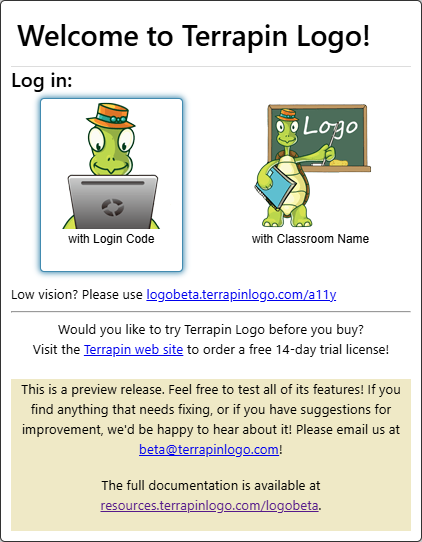
Click ‘with Login Code’ unless you are at a school. (Your teacher will tell you how to log in.)
Next, you will see this dialog. Copy the login code from the license email you received from Terrapin. Make sure to check the ‘Remember my Login Code’ box so you don’t have to keep entering the long code! If you can’t find your code, you can email Terrapin to have it resent.
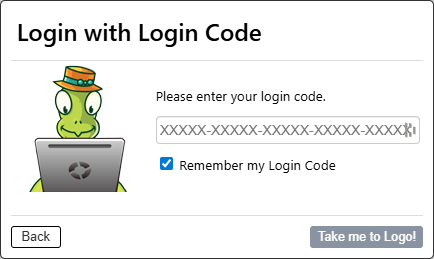
Click ‘Take me to Logo!’ Congratulations — you are ready to begin your Logo adventures!
Initial Layout
When you first start Terrapin Logo, you will see three panels, or sections of the screen. Each panel has a special purpose. The panels are connected by splitters, which allow you to make them larger or smaller. You can also choose from a variety of different layouts (more later).
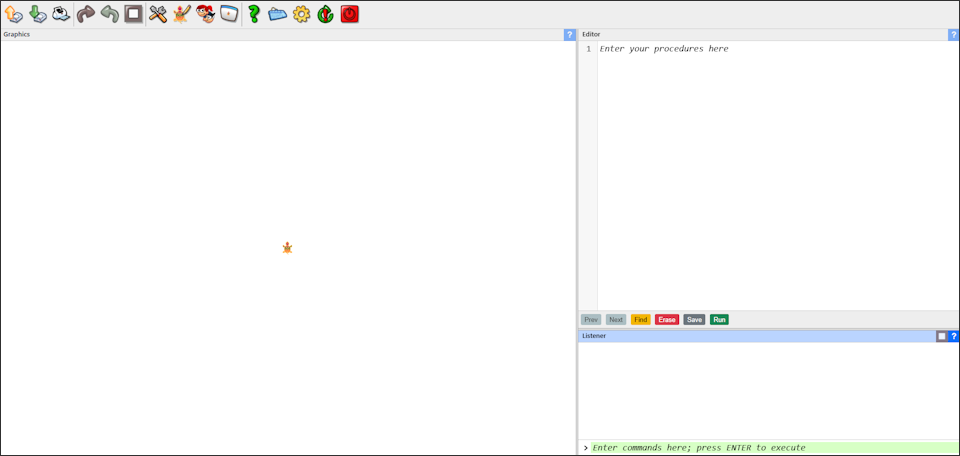
Graphics: This panel is the large square area on the left side. The Logo turtle is at its center. 
Listener: This panel is at the lower right of the screen. Commands you enter there are run immediately. (Click the Undo button in the Icon Bar if you make a mistake!)
Use the Up arrow on your keyboard to bring back prior instructions you typed.
Now you can press
Editor: This panel is at the upper right of the screen. Here is where you write procedures. The Prev and Next buttons let you skip from error to error, if any exist. Find searches the Editor for text you enter. Save saves the editor to a file. Run defines and runs the contents of the editor. (You can run the code even if it has errors.)
The Icon Bar
The Icon Bar is at the top of the screen, but you can choose which edge to place it.

The Icon Bar is packed with essential functions for using Terrapin Logo. Below is a brief summary of what each icon does.
 |
Load File: The icon with the yellow arrow pointing up loads a file. You can browse your computer to find the file you want. Remember that it might be in your Downloads folder. You can choose the type of file you want to load. |
 |
Save File: The icon with the green arrow pointing down saves a file. You can give your file a name. Choose a name to help you remember what is in the file. It will be saved to your Downloads folder. You can choose the type of file you want to save. |
 |
Print Panels: Click this icon to print the panel of your choice—Graphics, Editor, or Listener—or Everything, which is essentially a screenshot. In the printer dialog box, you can choose Portrait or Landscape mode. You can also change the scale of the printout, if the content does not all fit on one page. |
 |
Undo: If you enter a command that you wish you hadn’t, just click the Undo button. You can continue to click Undo until there are no more commands to undo. This button is grayed out when there is nothing to undo. |
 |
Redo: After you undo a command, you can get it back by clicking the Redo button. You can continue to click Redo until there are no more commands to redo. It is grayed out if there is nothing to redo. |
 |
Stop: Click the Stop button to end a program early. If no program is running, the Stop button is grayed out. |
 |
Toolbox: The Toolbox contains colors you can drop onto the Drawing canvas, dozens of shapes you can drop onto the turtle to change its appearance, and many different ready-made backgrounds. Place the turtle in the middle of a starry sky, or on a tile floor. The Toolbox opens up lots of opportunities for new adventures! |
 |
Shape Editor: The Shape Editor lets you create new shapes for the turtle! You can even load an image from your computer to use as a turtle shape. Edit some of the ready-made shapes, or start from scratch. The possibilities are endless! |
 |
Select a Voice: Here, you can choose a voice to use with Logo’s SAY command. The available voices on your computer may be different depending on the browser you are using. For example, on a Windows computer, the Edge browser offers dozens of Microsoft voices. The Chrome browser offers Google voices. |
 |
Select a View: There are six different screen layouts to choose from. Use this button to explore the available options. You can also choose where to place the Icon Bar, which can live on any edge of your screen. Logo will load the last used layout when you log in the next time. |
 |
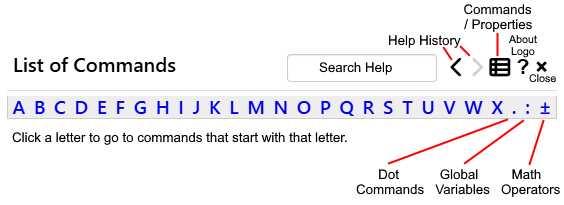
Help: Help information is now fully integrated into Logo! You can search for a command you want to learn more about or browse through them. If you want to know more about a command that is in your Editor panel, just double-click it and you can choose see the Help for that command. You can even use Shift+arrow key to go through all the commands in alphabetical order, one by one. The arrow keys at the top of Help let you return to previous commands you have looked at. Click the Menu button to switch between Commands and Properties. There are also Dot Commands, Global Variables, and Math Operators to explore! |
 |
|
Most Help commands offer examples. Click the  button so you can paste the sample code into the Editor or Listener panel and try it out. button so you can paste the sample code into the Editor or Listener panel and try it out. |
|
 |
Keystroke Commands: Logo offers many keyboard shortcuts, which you may wish to learn. For example, the function key F11 sets Logo to take up the full browser tab. This is called Fullscreen mode, not to be confused with Logo’s FULLSCREEN command. To return to the normal layout, press F11 again, or press and hold the |
 |
Settings: Take a few minutes to look at the Settings options. There are several you may want to change. If you turn on Autosave mode, when you return to Logo, your environment is exactly how you left it. Beware of unchecking this box:  If you uncheck this box, Logo will only understand commands typed in uppercase letters! Typing If you uncheck this box, Logo will only understand commands typed in uppercase letters! Typing forward 100 will no longer work, but FORWARD 100 will work. You can also change the default fonts and sizes in Settings. Enabling the Debugger can be useful for experienced coders, but may be confusing to those just starting out. If you enable the Debugger, you can always return to Settings to turn it off.  |
 |
Restart Logo: This button restarts Logo. You will be asked if you want to erase everything and restart Logo. This has the same effect as typing RESTART. Note, however, that even if you have Autosave turned on, your data is lost, so be sure to save your work before clicking this button! |
 |
Quit Logo: This button logs you out of Logo. You will be asked if you want to exit Logo. Be sure you save your work before clicking this icon! Clicking this button has the same result as typing QUIT or BYE. |
Editor
The Editor is where you can type a sequence of instructions and write procedures to build programs. When you enter commands in the Listener panel, they are run immediately. Code in the Editor runs only when you click the Run button.
The Editor analyzes your code for errors as you type. Errors will appear with red squiggly lines under them. Double-click a word that is flagged as an error to see a message about it.
Note that some errors won’t be detected until you run the program.
The buttons at the bottom of the Editor panel are handy for finding the next or previous occurrence of text, along with saving and erasing the contents of the Editor and running the code.

If you want your code to start automatically, you can put the name of the main procedure or other commands you wish to run at the bottom of the Editor, like this:
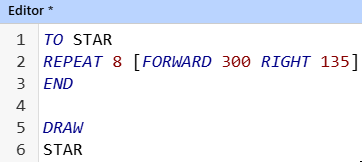
The asterisk (*) after Editor at the top of the panel (see image above) indicates that you have not saved the latest version of your program. If you click the Save button, you will see this dialog:
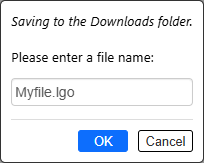
Enter a name for the file and click OK. It will be saved to your computer’s Downloads folder.
If you don’t keep .lgo at the end of the filename, it will be saved as a .txt file. You can load either a .lgo or a .txt file into the Editor.
Terrapin Logo Configuration
It is easy to customize Logo to suit your needs or those of your students. You can configure Terrapin Logo to:
• automatically load certain procedures or commands when Logo launches • use different default settings • hide icons from the Icon Bar • change or remove the prompt, which is initially set to >. • set the Layout (Logo typically remembers the last layout used, but setting the layout here ensures that the desired layout is automatically loaded, regardless of the last one used)
To access these startup features, go to https://logobeta.terrapinlogo.com/config. Enter your license number at the top. Then click the Load button to see what options have been configured, if any.
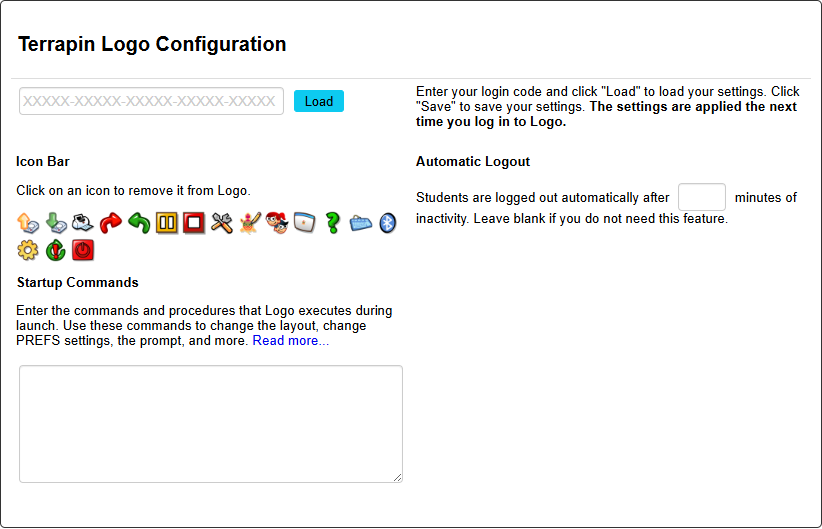
To hide an option from the Icon Bar, just click it. A red X will appear on it. Click an icon with the X to restore it to the Icon Bar.

For example, if you always want to start up with the Blocks layout, put this command in the Startup Commands box: BSV
If you want to turtle to move slowly and be a little larger, enter these commands:
SETTURTLESIZE 1.5
SETTURTLESPEED .8
Be sure to click Save when you have finished making changes to the Config page. The next time you log in to Logo, these settings will take effect. You can always return to this page to make changes.
For detailed information about configuring Logo for a school campus, visit this page: https://resources.terrapinlogo.com/weblogo/manual/config
Tips and Tricks
This information will help you enjoy smooth sailing as you explore Logo!
What are the options for saving and loading files?
When you click the Save or Load button on the Icon Bar, you will see some choices for saving your files.
Workspace as Logo File (.lgo) Saves all procedures as well as the global names and property lists, including the current preferences (as the PREFS property list), as a text file with the extension .lgo. You can edit the file with any editor, or load it back into the Logo workspace or into the Logo editor.
Environment (logoenv.zip) Saves everything in the Listener panel, Graphics panel, and Editor panel, as well as any procedures, names, and property lists created. This is the best choice for students who are working on a project or new to Logo; when you load a logoenv.zip file, Logo restores the complete environment to the state that was saved.
Editor Contents (.lgo) Saves what is currently in the Editor panel. This is a good choice if a student is working on a procedure in the Editor and is not finished, or if the student loaded a .lgo file into the Editor.
Picture (.png) Saves the Graphics panel as a graphic image in a .png format. The picture can be saved with or without the background, or with or without any turtles or bitmaps.
Blocks File (.xml) Saves the contents of the Blocks panel as an XML file. After you load Blocks File, you will need to switch to a Blocks layout using a command like BSV to see the Blocks.
Why do I have choices when I save or print pictures?
The Graphics panel has two layers. The turtle lives in a layer above the background. The background is, as its name implies, at the back.
Suppose you draw this design using the commands below at the right:

SETBG "BLUE
SETPC "RED
SETWIDTH 5
STAMPOVAL 200 200
After you click the Save button on the Icon Bar, choose this button: 
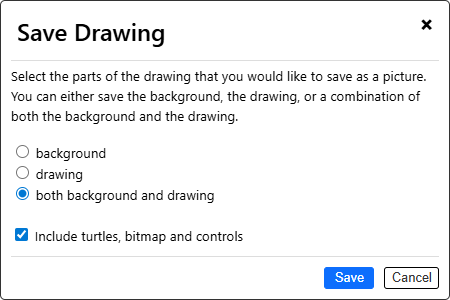
- If you choose background, you will save just the blue background.
- If you choose drawing, you will save the red circle and the turtle.
- If you choose both background and drawing, you will get the entire image.
You can uncheck the box at the bottom to hide the turtle and other widgets.
All of these options apply to printing as well as saving.
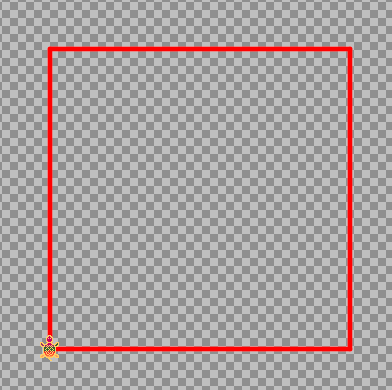
The background is initially transparent, so if you don’t change its color using SETBG or its pattern using SETBGPATTERN, you will just see a blank image for the background, as shown in the picture below.
How can I save my project after I log out of Logo?
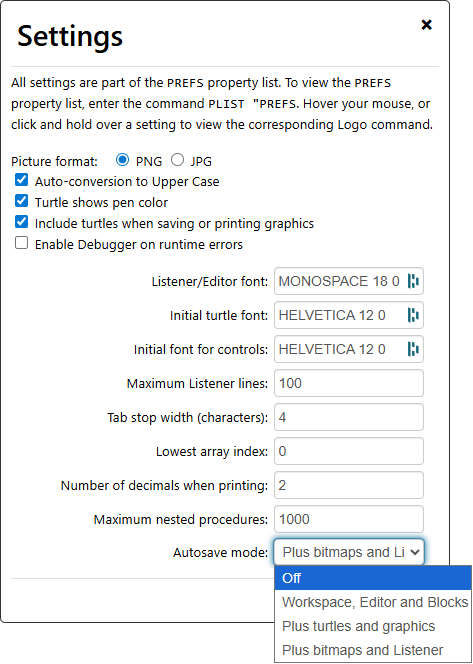
Be sure to turn on Autosave mode in Settings.
You can choose to save the Workspace (with the procedures and variables you have defined), plus the contents of the Editor, and any Blocks you are using. The next option includes all of that, plus the turtle and Graphics panel. The last option also includes bitmap images and the Listener panel.
Why not save everything, just to be safe?
You can also use the Save button in the Icon Bar and choose the Environment option if Autosave mode is turned off.
How to Learn Logo
Now you are ready to start exploring with Logo! Here are several ways to learn how to code.
They approach learning Logo in a slightly different ways, so find the one that suits you best.
If you want to learn how to use Block Programming, start with this tutorial.

The Logo Learning Center is designed to help those just starting out with Logo. Here you will find the most common commands and learn how to use them. It is an easy-to-understand reference guide to help you see how the commands work. For each command, you will see a description of what it does, examples of using it, and things to try. The commands will help you work on the 101+ Ideas for Logo projects as well as the Turtle Tuesday Logo challenges.
Visit the Logo Learning Center.
 Logo Works: Lessons in Logo comes with your Logo license. It is a step-by-step tutorial to using Logo’s turtle graphics. You will learn to move the turtle, create loops using
 REPEAT, write procedures, draw shapes, use variables, and explore recursion.
Put your learning to use by creating a final project.
View the Table of Contents.
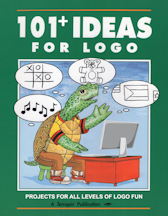 101+ Ideas for Logo also comes free with your Logo license.
It is a collection of dozens of fun ideas that young programmers can use to get started with coding. There are many projects for both beginning and advanced students to explore in all areas of Logo.
View the Table of Contents.
Turtle Tuesdays
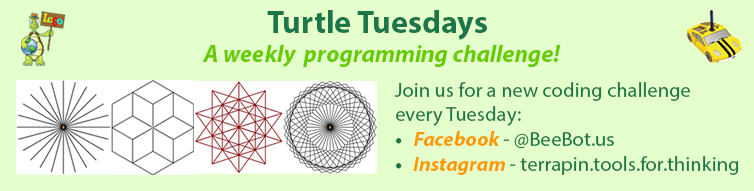
Turtle Tuesdays offers fun programming challenges for Logo and (sometimes) Pro-Bot, InO-Bot, and Kinderlogo users. All the challenges are archived, with links and solutions in the sidebar. Some challenges are easy for beginning Logo coders to try, others are more difficult. All students will enjoy creating code that makes their project special to them as they explore new commands. Encourage your young coders to work collaboratively on projects.
Visit the Turtle Tuesdays webpage.
Logo Program Library
These pages contain an ever-growing list of Logo source code files. Many of these files demonstrate programming techniques or Terrapin Logo features. They include animations, musical pieces, games, fractals, and tutorials. You can download the source code to all programs and modify them to your liking. Visit the Logo Program Library.
If you have a Logo program that you would like to share, let us know! Just fill out our Customer Contribution Form, click “I would like to share my Logo program”, and we’ll get in touch with you.
Logo Manual
The Logo Manual has sections for all aspects of Logo. Spend some time with the Logo Manual to learn more about Logo and improve your coding skills. Topics include Making Music, Interacting with the User, The Shape Editor, Crush the Bugs!, and much more.
Visit the Logo Manual.