
Turtle Tuesdays Challenge for July 2026
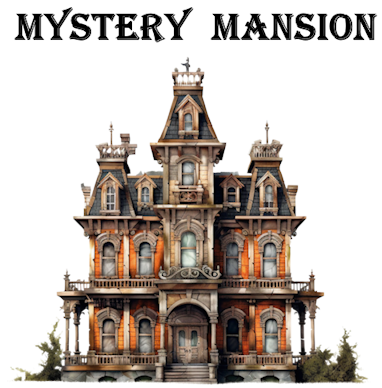
Let’s create a text-based adventure!
This month, Turtle Tuesdays will be totally different! You’ll embark on a month-long coding project in Logo. (Get the 14-day Logo trial version here, if you don’t already have Logo.) We’ll get you started and you can come back to this page to get new hints and snippets of code to use all month. We’ll guide you every step of the way. By the end, you’ll have an adventure you’ll be proud of.
To do this project, you will need to know how to write procedures and create variables. If you don’t know how, you can follow the instructions in the Logo Works: Lessons in Logo book, which you can access with your Logo login code from this page.
Click to expand and read each section of the guide below to create your adventure game.
Read First: About the Project
Together, we’ll create a text-based adventure game. The adventure will take place in a Mystery Mansion. You will enter commands to move from room to room, look at what’s in each room, explore items to get more details, take items that are useful, and eventually solve the mystery.
We’ll give you tips every step of the way. Your adventure can be as simple or as complex as you want, but it’s best to start with a simple plan and build on it after the basic program works.
This project will use property lists. If you haven’t used property lists before, no worries. You will soon learn how useful they can be. This adventure game is a perfect opportunity to use property lists. Rooms have properties, and the objects in them have properties.
The great thing about the design we will use is that you can easily create an entirely different adventure game by changing information in just two procedures. In October, you could turn it into a Haunted House. In December, it could become Santa’s Village.
There are many steps to this project. Every few days, you find the next step on this page.
You may find it useful to team up with someone as you create your program. Bouncing ideas off another person can make your project better. Your adventure “buddy” doesn’t have to be a programmer, just someone who is interested in your project and willing to help you think through it.
Let’s get started! Go to Step 1.
What if you have questions?
If you have any questions about coding your adventure, just ask us. We can look at your program and figure out why things aren’t working as you want. Let us know you would like help with your program and we will be in touch. Use this form: www.terrapinlogo.com/forms/share.html
Step 1: Create a map of the rooms in your mansion.
Shown at the right is a sample map of a mansion. It will serve as our guide as we code the adventure.
Your first job is to create a map of rooms in your mansion. There don’t need to be many rooms. Start with just a few. You can always add or remove rooms later.
The only rules are:
• Each room has to share a wall with at least one other room.
• The name of the room can’t have a space in it. Use an underscore character instead of a space.Come back in a day or two to see how to use property lists in Step 2. so you can move from room to room in your mansion.
Step 2: Set up how to get from room to room.
Have you created a map of rooms in your mansion? Great! (If you haven’t, go do it now.)
Today, you will create commands so the player can move from room to room in your mansion.
To move around the mansion, you will use these directional commands:
NORTH,SOUTH,EAST,WESTMake a procedure called
SETUPin the Logo Editor that will create your mansion and everything in it.
TO SETUP
ENDThe
SETUPprocedure should include an instruction that stores the names of the rooms in a variable, like this:
MAKE "ROOMS [ENTRY DINING_ROOM LIBRARY ...]Choose the room that the player starts in. In our mansion, the room is called ENTRY. Put this instruction in the SETUP procedure, using the name of your starting room:
MAKE "ROOM "ENTRYYour SETUP procedure now looks something like this:
TO SETUP
MAKE "ROOMS [ENTRY DINING_ROOM LIBRARY ...]
MAKE "ROOM "ENTRY
ENDCreate a new procedure named
SETUP_MAP. It will be called by theSETUPprocedure.
TO SETUP_MAP
END
TO SETUP
SETUP_MAP
MAKE "ROOMS [ENTRY DINING_ROOM LIBRARY ...]
MAKE "ROOM "ENTRY
ENDIn the
SETUP_MAPprocedure, you will create a property list for each room. The property list will have a direction word followed by the room you get to if you type that direction. You will use thePPROPScommand, a handy way to store multiple properties in a property list.The name of the property list we will create first is
"ENTRY, the name of the room.Look at our mansion map. There is only one way to leave the ENTRY. If you go North from the ENTRY, you get to the HALL. If you try to go anywhere else, nothing is there.
PPROPS "ENTRY [NORTH HALL EAST NOTHING SOUTH NOTHING WEST NOTHING]The property list has the label NORTH with a value of HALL. All the other directions have a value of NOTHING.
The Living_Room has rooms in all directions, so its property list will look like this:
PPROPS "LIVING_ROOM [NORTH GAME_ROOM EAST LIBRARY SOUTH HALL WEST DINING_ROOM]Do you see how that works? If you go North from the Living Room, you get to the Game_Room. If you go East, you get to the Library. If you go South, you go back to the Hall. If you go West, you go to the Dining_Room.
Figure out the property list for each room in your mansion and put them all in the
SETUP_MAPprocedure. You’ll have a separate line for the property list for each room with its list of properties showing the direction words that will take you to a different room. Each direction word has either the name of a room or NOTHING. Make sure there is an even number of items in your property list.The property list for each room will eventually contain many different properties.
Now that you have defined where the player can go from each room, you need to create procedures for those direction commands. The directional commands will use a
GO_ROOMprocedure that you will write in just a moment, after you have created these four procedures. Type these procedures into the editor.
TO NORTH
GO_ROOM "NORTH
END
TO EAST
GO_ROOM "EAST
END
TO SOUTH
GO_ROOM "SOUTH
END
TO WEST
GO_ROOM "WEST
ENDThe
GO_ROOMprocedure takes a direction as input, as inGO_ROOM "WEST. The procedure looks like this:
TO GO_ROOM :DIRECTION
MAKE "DIRECTION GPROP :ROOM :DIRECTION
IF :DIRECTION = "NOTHING THEN PRINT [YOU CAN'T GO THAT WAY.] STOP
MAKE "ROOM :DIRECTION
(PRINT [YOU ARE NOW IN THE] :ROOM)
ENDYou can just use these procedures as they are written, but for those who are curious, let’s see how the GO_ROOM procedure works.
The first line uses
GPROP(short forGet Property) to look up the room that is in the direction of the input word in the property list for the current room, stored in the variable :ROOM.
MAKE "DIRECTION GPROP :ROOM :DIRECTIONIf you typeGPROP "ENTRY "NORTH, the value of :DIRECTION becomes"HALL, which is what GPROP looked up.If there isn’t a property for the direction you type, you are told you can’t go that way.
IF :DIRECTION = "NOTHING THEN PRINT [YOU CAN'T GO THAT WAY.] STOPIf there is a room in the direction of the input, then you set that new room to be the current room and tell the player where they are now.
MAKE "ROOM :DIRECTION
(PRINT [YOU ARE NOW IN THE] :ROOM)Let’s see if it works. After creating the
GO_ROOMand the direction word procedures (NORTH,SOUTH,EAST, andWEST) in the Editor, click Run to execute theSETUPprocedure.
If you are in theENTRYand typeSOUTH, what will you see?YOU CAN'T GO THAT WAY.
If you are in theENTRYand typeNORTH, what will you see?YOU ARE NOW IN THE HALL.Don’t worry if you don’t yet fully understand the
GO_ROOMprocedure, as it is a bit complicated. Just type it in and get it working.After you have property lists for all the rooms and you can navigate to and from all the rooms, we’ll add objects to find and explore.
Remember to save your program!
Come back in a couple of days to add more to your adventure!
Step 3: Add instructions for the player.
In our game, we give the player some tips on how to explore the adventure. Your directions might be different, but here is how our game starts.
You are in the main entry of the Mystery Mansion.
Type NORTH, SOUTH, EAST, or WEST to go to a different room.
Draw a map of the rooms so you know how to get around easily.
Type WHERE to see your current ROOM.
Type LOOK to see what is in the room.
Type EXPLORE to check out an item.
Type TAKE to move an item into your inventory.
Type INVENTORY to see items you have found.We tell the player where they are and the direction words to use to go from room to room.
We suggest that the player draws a map of the mansion when they discover the rooms so they can easily go to any room they want at any time.
There are five additional commands they can use.
WHEREtells them the current room.
LOOKlets them see what is in the room.
EXPLORElets them see details about what is in the room.
TAKElets them keep some items. Not all items can be taken (more about that later).
INVENTORYtells them what they have taken.In the
SETUPprocedure add these tips. You may also want to start be going toTEXTSCREENmode and erasing any existing text withCLEARTEXT. Your procedure might look something like this:
TO SETUP
SETUP_MAP
MAKE "ROOMS [ENTRY DINING_ROOM LIBRARY ...]
MAKE "ROOM "ENTRY
MAKE "INVENTORY []
TEXTSCREEN
CLEARTEXT
PRINT "|You are in the main entry of the Mystery Mansion.|
PRINT "|Type NORTH, SOUTH, EAST, or WEST to go to a different room.|
PRINT "|Draw a map of the rooms so you know how to get around easily.|
PRINT "|Type WHERE to see your current ROOM.|
PRINT "|Type LOOK to see what is in the room.|
PRINT "|Type EXPLORE to check out an item.|
PRINT "|Type TAKE to move an item into your inventory.|
PRINT "|Type INVENTORY to see items you have found.|
ENDSee how we created a variable called
INVENTORYto store the items you collect?The last line in the Editor should be
SETUP. That runs the commands in theSETUPprocedure.In this adventure, you aren’t running a main procedure. You are giving toplevel commands in the Listener window. The words you type are names of procedures that run when you tell them to.
If you type a command that the adventure doesn’t know about, you will see a message that the word you typed is not a procedure.
Can you figure out how to write the procedures called WHERE and INVENTORY? You already know the names of those variables. The procedures with those names just need to print the value of the variables to the Listener window.
Tip: If the
INVENTORYvariable is empty, you can tell the player that they haven’t found anything yet.You may wish to add a
TIPScommand that shows the available commands. You can’t use HELP because that is already a primitive.TIPSwould work, though. AddTIPSto the list of available commands in theSETUPprocedure.Remember to save your program!
Next you will learn how to organize your adventure.
Step 4: Organize your adventure.
Before you can start adding things to the rooms for the player to explore, you need to make a plan.
Don’t use Logo. Use paper and pencil, or Notepad or other app on your computer.
Figure out what objects the player might find. Think of what the objects’ properties might be.
• What do they see when they look around the room?
• Does the room have an object in it?
• Can they take the object?
• What is special about the object? What do they see if they “explore” the object?
• Do they need to take the object now so they can use it later in some other room?
• How do you want the adventure to end? The player will want to solve it. It is called Mystery Mansion! Perhaps the player needs to have certain items in Inventory and be in a particular room to make something special happen. Do they need to have visited all the rooms?You have a lot to figure out! Write it down so you have a plan to follow. Talk to your adventure “buddy” to bounce around ideas. Two heads are better than one, as they say!
Step 5: Set up your rooms.
Now that you have decided what is in each room, you can start adding more details to your code.
The
SETUP_MAPprocedure that allows you to move from room to room can also include what people see if they type theLOOKcommand.
LOOKwill be a property list within each room’s main property list. Just add another property calledLOOKfollowed by a list of words that describe what the player will see when they look at the room.Perhaps the Living Room has a beautiful rug on the floor. Then, the
LIVING_ROOMcode in the SETUP_MAP procedure would look like this:
PPROPS "LIVING_ROOM [
NORTH GAME_ROOM
EAST LIBRARY
SOUTH HALL
WEST DINING_ROOM
LOOK [YOU SEE A BEAUTIFUL RUG ON THE FLOOR.]Note that you can press
or after each property name and value so each one is on a separate line. That makes it easier to read. Just be sure to put the break after the first left bracket,**[**. In order for players to look at the room, you’ll need to create a
LOOKprocedure. It looks up the value of the LOOK property in the current room’s property list.
TO LOOK
PRINT GPROP :ROOM "LOOK
ENDIn this example, if the player is in the Living Room and types
LOOK, they will see this:
YOU SEE BEAUTIFUL RUG ON THE FLOOR.If there is nothing special to see in a room, the value of the LOOK property can be
[THERE IS NOTHING TO SEE HERE.].Remember to save your program!
Use your imagination and be creative as you design your adventure!
Step 6: Set up your objects.
Have you decided what objects are in each room? Not every room needs to have an object.
To see what object is in a room, the player will type EXPLORE. We’ll get to that procedure shortly.
First let’s determine what properties an object might have and what conditions might occur.
• Can the player take the object? (Some may be too large or heavy.)
• What do you tell the player after they take the object?
• Does the player need to take the object in order to complete part of the adventure?
• Has the room been explored before and the object taken?
• Is there any particular action that occurs when they visit the room or take the object?Create a
SETUP_ITEMSprocedure that will store all this information for each room. It is similar in structure to theSETUP_MAPprocedure, but deals specifically with the objects the player finds. The beginning of this procedure might look like this:
TO SETUP_ITEMS
; set up the items, what is REQUIRED, etc.
PPROPS "ENTRY [
ITEM HAT ; the item that lies here
REQUIRED NOTHING ; nothing REQUIRED to TAKE that item
REMOVABLE TRUE ; you can take that item
EXPLORED FALSE ; true after EXPLORE has been called, FALSE to prevent TAKE
EXPLORE [THERE IS A HAT ON A HOOK.]
TAKE [YOU PUT THE HAT ON.]
ACTION []] ; an action that TAKE performs in the backgroundHere is what this code means and the details of each of these properties for objects:
• The first property in the room’s property list names the object that the player will find in the current room. The name of the property is
ITEMand its value is what the item is, a HAT in this example.
• In the next line, theREQUIREDproperty indicates whether or not the item must be in Inventory when the player is in a specific room. If the value is NOTHING, then it is not required to complete the adventure. For example, if the game requires that the player has a MAP when in the LIBRARY, the property list in the LIBRARY property list would be REQUIRED MAP. The MAP would need to be an object that can be taken in a different room.
• TheREMOVABLEproperty says whether or not the object in the room can be taken. Its value is either TRUE or FALSE. An object that can’t be removed is not required to finish the game.
• TheEXPLOREDproperty is either TRUE or FALSE. Its initial value is FALSE. When you explore a room, the EXPLORE procedure sets it to TRUE. This prevents the player from taking an object more than once. You can also use this property to determine if the player has explored every room.
• The value of theEXPLOREproperty is what the player sees when they type EXPLORE.
• The value of theTAKEproperty is what the player sees when they type TAKE. When they take an object, it goes into their Inventory.
• The value of theACTIONcommand is what might occur in that room. There is no ACTION command for the player to type. The action takes place behind the scenes. It might set a property, give you a hint, or even open up a new room! Most of the time the value of action will be [], or nothing.The first set of properties in the procedure above is for the room named ENTRY. You can create a similar property list for each room. Give it a try!
You will need an
EXPLOREprocedure. This procedure, shown below, does two things:
- It displays text for the player to read.
- It changes the value of the EXPLORED property of that room to TRUE. That allows you to take it item (if it is removable).
TO EXPLORE
PRINT GPROP :ROOM "EXPLORE
PPROP :ROOM "EXPLORED TRUE
ENDNow you need to add
SETUP_ITEMSto theSETUPprocedure you type to run the code.
TO SETUP
SETUP_MAP
SETUP_ITEMS
MAKE "ROOM "ENTRY
MAKE "INVENTORY []
TEXTSCREEN
CLEARTEXT
PRINT "|You are in the main entry of the Mystery Mansion.|This part of the adventure is a bit tricky. You will have a lot of testing to do!
Remember to save your program!
Step 7: How to take an object.
Taking an object make sound like a simple operation, but there are several things to consider.
Let’s take a close look at the TAKE procedure.
In a nutshell, it says: • You need to type EXPLORE before you can take an object with TAKE.
• If there is nothing in that room to TAKE, tell the player there is nothing there.
• If the player needs a REQUIRED object to continue the adventure, tell them.
• When they take an object, display the message you have set up in the property list for TAKE.
• If there is nothing removable, don’t do anything (the player will have already seen the message that there is nothing there).
• When they TAKE an object, remove it from the room and add it to the INVENTORY list.
• Run any ACTION that is assigned to this room.Below is the TAKE procedure. The semicolon in front of a line is a comment. Logo ignores comments, but it is a great way to document your code so you remember why you wrote it that way and for others to understand it.
TO TAKE
; has the room been explored?
IF NOT GPROP :ROOM "EXPLORED THEN PRINT [THERE IS NOTHING TO TAKE. DID YOU EXPLORE THE ROOM?] STOP
; stop if there is no item
LMAKE "ITEM GPROP :ROOM "ITEM
IF :ITEM = "NOTHING THEN PRINT [THERE IS NOTHING HERE.] STOP
; if there is a required item: is it in the inventory?
LMAKE "REQUIRED GPROP :ROOM "REQUIRED
IF AND (:REQUIRED != "NOTHING) (NOT MEMBER? :REQUIRED :INVENTORY) THEN (PRINT [YOU NEED A] :REQUIRED [TO CONTINUE.]) STOP
LMAKE "MESSAGE GPROP :ROOM "TAKE
IF :MESSAGE != [] THEN PRINT :MESSAGE
IF NOT GPROP :ROOM "REMOVABLE THEN STOP
PPROP :ROOM "ITEM "NOTHING ; remove the item from the room
MAKE "INVENTORY FPUT :ITEM :INVENTORY ; add it to the inventory
RUN GPROP :ROOM "ACTION ; and execute any action
ENDWhew!
Did you already figure out how to write the
INVENTORYcommand procedure?If so, it probably looks like this.
TO INVENTORY
IF EMPTY? :INVENTORY THEN PRINT [YOUR INVENTORY IS EMPTY.] STOP
PRINT :INVENTORY
ENDAdd the
TAKEandINVENTORYprocedures to your program and do a lot of testing.A good way to test is to try all the commands for objects in every room—
LOOK,EXPLORE,TAKE,INVENTORY—and see if the right thing happens.Remember to save your program!
Step 8: How to end the adventure.
The player will want a tidy conclusion to the adventure. Will they find something magical? Will they have all the required items in their inventory and visit the right room to claim a prize? Will they need to have visited all the rooms?
You (and your adventure buddy) can figure this out.
Here is a handy procedure to know if they have visited all the rooms. It outputs TRUE if all the rooms have been explored, and FALSE if the rooms haven’t all been explored. It doesn’t say which rooms have gone unexplored, although you could tell them.
TO EXPLORED_ALL_ROOMS :ROOMS
IF EMPTY? :ROOMS OUTPUT TRUE
IF NOT GPROP FIRST :ROOMS "EXPLORED OUTPUT FALSE
EXPLORED_ALL_ROOMS BF :ROOMS
ENDUse it with an instruction like this:
IF EXPLORED_ALL_ROOMS :ROOMS [PRINT [YOU HAVE EXPLORED ALL THE ROOMS.]] [PRINT [YOU STILL HAVE ROOMS TO EXPLORE. GO FIND THEM!]]Here’s another way to check if all the rooms have been explored. It is very concise, and uses a command you probably haven’t tried before. The
FOREACHcommand goes through a list you give it (:ROOMS in this case) and applies the same instruction to each item in the list. The “? refers to the current item in the list. The use of NOT GPROP “? “EXPLORED detects if the room has not been explore, and the procedure returns a FALSE value. It doesn’t need to continue processing the rest of the rooms, because it had to fine was one room that hadn’t been explored.
TO EXPLORED_ALL_ROOMS
FOREACH :ROOMS [IF NOT GPROP "? "EXPLORED THEN OUTPUT FALSE]
OUTPUT TRUE
END`A sample conclusion to the adventure might be:
TO WIN?
OUTPUT EXPLORED_ALL_ROOMS :ROOMS AND MEMBER? "MAP :INVENTORY AND :ROOM = "LIBRARY
ENDThe
WIN?procedure outputs TRUE if the player has visited all the rooms, AND has the map, AND is in the Library. We’ll leave it to you to figure out how and where to use this procedure after you edit it to match the adventure you have created. Or design an entirely different set of conditions for ending the game.One final note: Have you heard of an Easter Egg in programming? This isn’t the type of egg you dye at Easter. It is code hidden in a program that might do something fun if the player discovers it by accident. Add one if you like!
You have likely learned enough and have the tools at hand to finish your adventure.
Good luck finishing it!A special gift awaits…
At the end of August, we will post our adventure game in the Logo Programming Library.
The first three coders who send us a completed and (hopefully) bug-free adventure by August 15 will receive a prize from Terrapin! All who submit a program will receive a certificate.
Use this form to tell us you have completed the adventure: www.terrapinlogo.com/forms/share.html
We’ll take a look at your program, see if it qualifies, and let you know if you are a winner.
You hope you have enjoyed your coding adventure. If you have gotten to the end, congratulations!